Guide · General
Best Laptops for Engineering Students: Specs That Matter
By the FruitPunch research deskUpdated November 17, 202613 min read
In short
Find the best laptops for engineering students by discipline, RAM, GPU and budget, with university specs and a checklist to confirm before you buy.

More than 99% of students already own a laptop, and that fact still doesn't pick a machine for an engineering degree. In an Oregon State University study of 2,035 students, more than 99% reported owning a laptop, while only 35% owned a desktop. Among those laptops, 1,172 respondents (57.6%) owned PCs and 845 (41.5%) owned Macs.
Ownership is not compatibility. The useful question is which required application the degree really runs, and whether the laptop's operating system, processor, memory, storage, and graphics can carry that application for four years.
There is no single winner among the best laptops for engineering students. There is a best fit for a software list. Departments that teach CAD, simulation, and programming have already published the floor.
Table of Contents
- Quick Picks for Each Engineering Discipline
- Minimum Specs Universities Require Today
- Why RAM, Storage and GPU Matter Most
- Which Platform Fits
- Portability, Battery and Durability on Campus
- Own GPU or Campus Lab
- Shortlist Models That Match Each Profile
- Confirm Your Laptop Before You Buy
Quick Picks for Each Engineering Discipline
There is no single best laptop for engineering students. There is a best fit for one discipline and one software list. A suitable machine is defined by coursework, not by the logo on the lid.
The University at Buffalo School of Engineering and Applied Sciences lists Windows systems with 32 GB of RAM and a 512 GB SSD, and it recommends 1 TB of storage. Its Apple guidance starts at 16 GB of RAM and recommends 24 GB plus 1 TB. That split is the buying clue. Heavier modeling asks for more memory than a general student laptop, and the brand is secondary.
| Profile | RAM | Storage | Graphics | Typical courses |
|---|---|---|---|---|
| Programming and basic MATLAB | 16 GB | 512 GB SSD | Integrated graphics works | Software, electrical basics |
| CAD and 3D modeling | 32 GB recommended | 1 TB SSD | Dedicated RTX 4050 or higher | Mechanical, product design |
| Simulation (FEA, CFD) | 32 to 64 GB | 1 TB SSD | Dedicated RTX-class GPU with 4 GB+ VRAM | Advanced modeling, simulation |
| Lightweight general use | 16 GB | 512 GB SSD | Integrated graphics | Only if required software runs on it |
How to pick a row
Find the hardest course on the degree plan and buy to that row. A mechanical student who opens large assemblies should not shop from the programming row. An electrical student whose heaviest tool is basic MATLAB should not pay for a workstation GPU that the software never uses.
Programming and basic MATLAB stays comfortable at 16 GB, a 512 GB SSD, and integrated graphics. CAD and 3D modeling moves to 32 GB, 1 TB, and a dedicated RTX 4050 or higher. Simulation such as finite-element analysis or computational fluid dynamics wants 32 to 64 GB and an RTX-class GPU with at least 4 GB of VRAM. Lightweight general use is fine at 16 GB and integrated graphics only when every required application runs on that platform.
Practical rule: The profile that matches the hardest course beats the most expensive laptop on the shelf.
A student who crosses disciplines should take the most demanding profile they will use. A faster processor on the wrong row does not fix a missing GPU or an operating system the department's installer rejects.
Minimum Specs Universities Require Today
University requirement pages set the floor for what a department expects a student laptop to run. They reflect the required software and platform for each program, which makes them a better guide than a retail "creator laptop" badge or a benchmark ranking.
| School and level | RAM | Storage | Graphics | Operating system |
|---|---|---|---|---|
| University at Buffalo, Windows | 32 GB | 512 GB SSD (1 TB recommended) | Not listed on the Windows standard | Windows |
| University at Buffalo, Apple | 16 GB (24 GB recommended) | 1 TB recommended | Not listed on the Apple guidance | macOS |
| UNC Charlotte | 16 GB | 512 GB SSD | Dedicated GPU, 2 GB VRAM minimum | 64-bit Windows |
| University of Rhode Island, minimum | 16 GB | 512 GB SSD | Dedicated GPU for SOLIDWORKS | Windows |
| University of Rhode Island, recommended | 32 GB | 1 TB SSD | NVIDIA RTX 4050 or higher | Windows |
| Northeastern, minimum | 16 GB | 512 GB SSD | None listed at the minimum | Windows 11, macOS 14 or later, or Linux |
| Northeastern, recommended | 32 GB | 1 TB SSD | NVIDIA RTX, Quadro, or Ampere with 4 GB+ GDDR5 | Same as minimum |
Where the floor stops being enough
The gap between the minimum and recommended rows is where the buying decision lives. Read down the columns and the pattern is stable. RAM doubles. Storage doubles. The graphics column goes from empty to a named GPU class. A department that lists a dedicated GPU only at the recommended tier is describing software that will not run comfortably at the minimum.
The University of Rhode Island engineering laptop requirement sets its floor at 16 GB of RAM and a 512 GB SSD, then recommends 32 GB and a 1 TB SSD. For SOLIDWORKS or comparable 3D tools it specifies a Windows laptop with a dedicated GPU, an NVIDIA RTX 4050 or higher, because large assemblies and simulations outgrow entry-level hardware.
Northeastern's College of Engineering computer requirements put the same gap in processor and graphics terms. The minimum calls for an 11th- or 12th-generation Intel Core i7 or AMD equivalent with eight cores at 3 GHz or higher, 16 GB, a 512 GB drive, and Windows 11, macOS 14 or later, or current Linux. The recommendation steps to a 13th-generation i7 or higher, 12 cores at 4 GHz or higher, 32 GB, a 1 TB SSD, and a discrete NVIDIA RTX, Quadro, or Ampere GPU with at least 4 GB of GDDR5, or an equivalent AMD GPU. First-year software there includes Microsoft Office, AutoCAD, MATLAB, and SolidWorks, which explains why the recommended tier exists.
A laptop that clears a general coursework minimum can still be underspecified for mechanical engineering or product design built around 3D CAD.
Two conclusions follow. Buy to the recommended row when the degree plan includes CAD or simulation, and treat the operating system column as a hard filter rather than a preference. Before buying, open the department's own requirement page and set it next to this table. If the local page is stricter on RAM, storage, or graphics, the local page wins.
Why RAM, Storage and GPU Matter Most
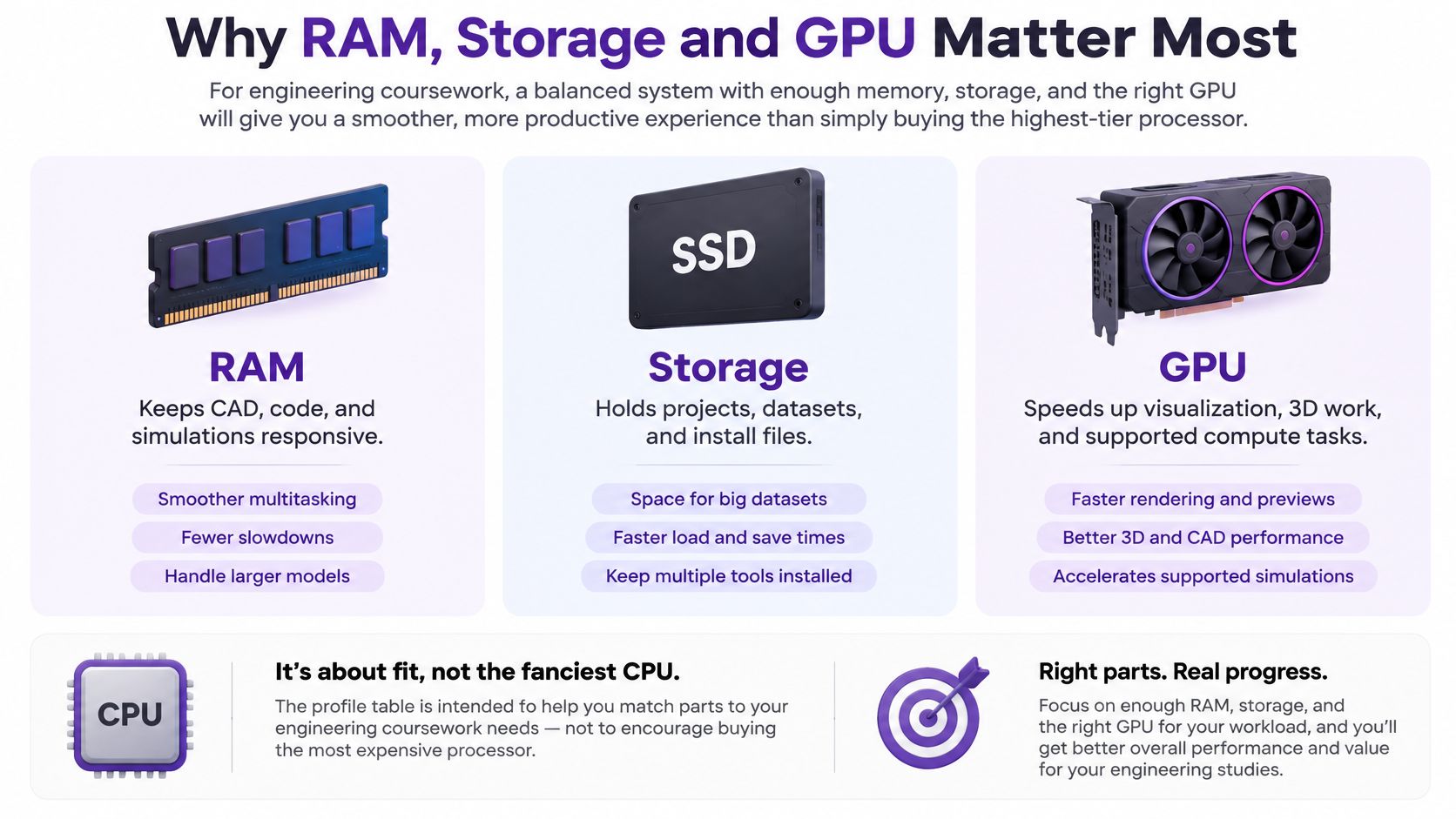
For most engineering students, 32 GB of RAM and a 1 TB SSD are more useful targets than the highest-tier processor. Intel's guidance for engineering-student laptops splits the workload that way, and the split explains the profile table better than any clock-speed chart.
Memory is the first thing that runs out
CAD, containers, virtual machines, and simulation keep several large programs open. When RAM fills, the machine pages to the SSD and the session feels stuck even if the CPU is modern.
Ordinary programming, MATLAB, and light electrical-design work fit in 16 GB. CAD, containers, virtual machines, and typical mechanical or civil projects are the 32 GB case. Finite-element analysis, computational fluid dynamics, large assemblies, or simulation plus visualization at the same time land in the 32 to 64 GB band.
Storage is a four-year bin, not a spec-sheet extra
A 512 GB SSD is the baseline that holds the operating system, the installers, and a modest project folder. 1 TB is the more useful target once datasets, assembly files, and virtual-machine images accumulate across a degree. A drive that is merely "enough in semester one" gets tight when simulation results and course archives share the same disk.
The GPU is optional until the software says otherwise
CAD and 3D modeling benefit from a dedicated GPU. MATLAB's base environment generally does not need one. The exception is specific. GPU acceleration through MATLAB's Parallel Computing or Deep Learning Toolboxes requires a CUDA-capable NVIDIA GPU. Integrated graphics, and non-NVIDIA cards, are not equivalent for that job.
Use this check before comparing models:
- RAM for the heaviest course. Match 16 GB, 32 GB, or 32 to 64 GB to the workload above, not to a processor tier.
- Storage for four years of projects. Treat 512 GB as the floor and 1 TB as the safer bin.
- A dedicated GPU only when the software needs it. That means CAD, 3D viewing, or CUDA work, not a faster chip for its own sake.
Which Platform Fits
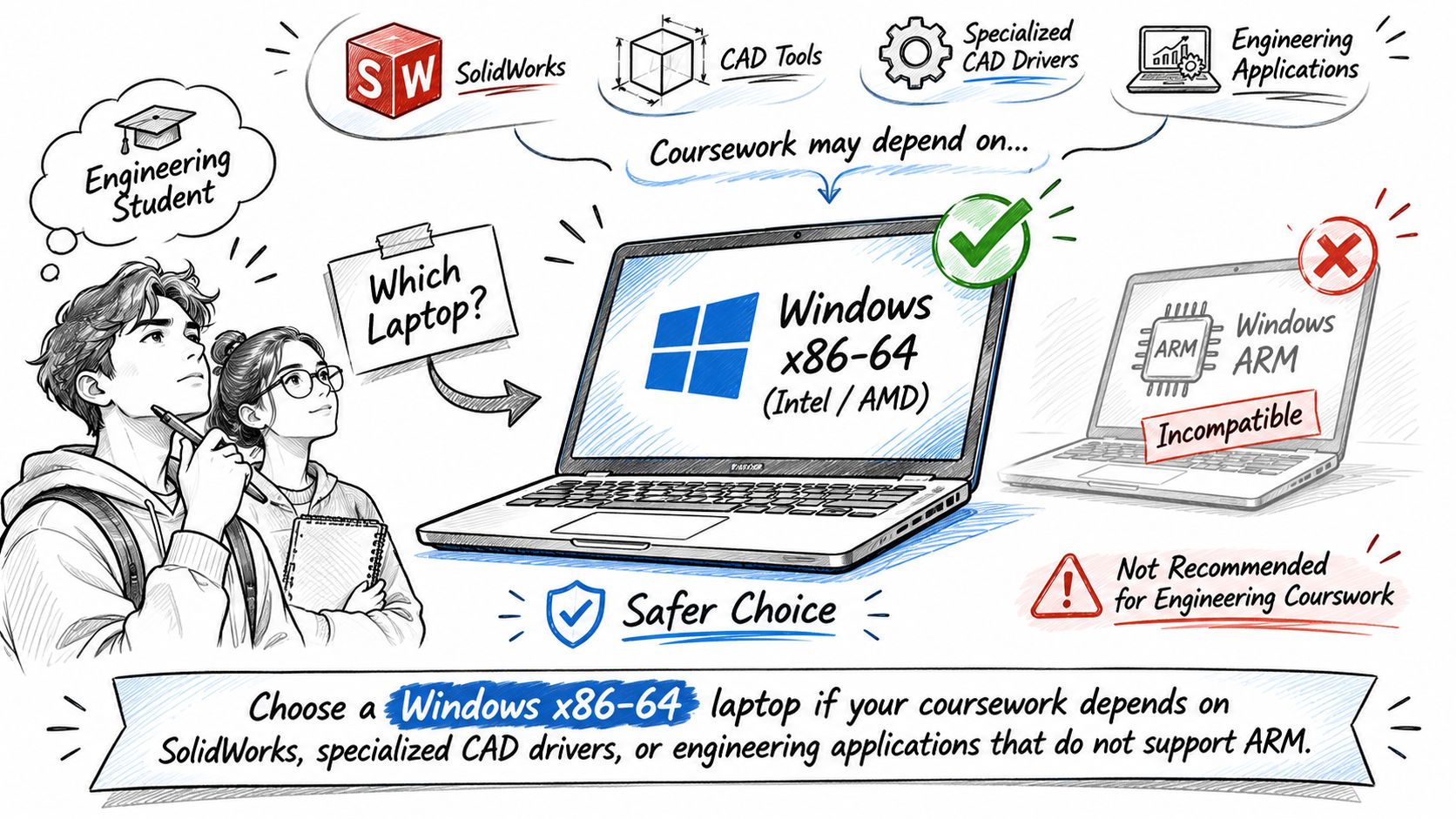
Start with the department's software list, because platform support can change the buy before benchmark scores matter. A Windows x86-64 laptop is the safer compatibility choice when coursework depends on SolidWorks, specialized CAD drivers, or engineering applications that do not support ARM processors. MathWorks' computer-selection note adds the matching performance rule: choose for sustained workload rather than a short burst score.
Software support comes before the brand
UC Irvine's engineering laptop FAQ excludes ARM, says Chromebooks cannot run CAD, and draws the memory line at 32 GB for biomedical and mechanical engineering versus 16 GB for other students. For a SolidWorks-centered mechanical plan, the practical constraint is wider than processor choice: CAD viewport and assembly work benefits from a professional-class GPU and a Windows driver stack.
Where a department lists macOS or Linux as supported for the required tools, either can work for programming-heavy courses whose applications are native on that system. That does not clear them for a mechanical plan built around Windows CAD. A thin Mac can still be the right daily machine for code, notes, and simulations that run natively; FruitPunch's 13-inch MacBook Air with M5 review fits the portability side of that comparison.
How to judge speed without a generic benchmark
More CPU cores can improve MATLAB, but results depend on the particular application. MathWorks recommends timing real code with timeit. The bench command is only a general indication. gputimeit is the right tool for GPU workloads.
For CAD-heavy courses, judge viewport movement, assembly size, and simulation work rather than an office benchmark. A portable workstation with a professional RTX-class GPU fits large assemblies and 3D simulation. A thinner laptop with integrated graphics is adequate for programming, basic MATLAB, and many electrical-engineering tools.
A short walkthrough of what changes when the workload is CAD rather than browsing makes the same point in motion.
Three checks close the platform decision:
- List every required application from the department page, including later-year electives.
- Confirm operating system and processor support on each vendor's requirements page, including ARM exclusions.
- Open the heaviest course file on a demo or loaner machine when the department or a lab allows it.
Portability, Battery and Durability on Campus
A laptop for an engineering week lives in lectures, studios, labs, and libraries. The chip matters only if the student can carry the machine, power it through a studio block, and still open it in year four.
Screen size and a proper mouse are part of the working kit for CAD, not accessories to add later. A display under 14 inches crowds drawings. A two-button trackpad makes orbit and selection clumsy in assemblies. Budget a three-button mouse with the laptop, the same way a lab bench already assumes one.
Weight, battery, and what can't be upgraded
Thin laptops with integrated graphics are lighter in a backpack and usually quieter in a lecture hall. Workstation-class laptops with dedicated GPUs are heavier, their chargers are larger, and CAD or simulation load shortens unplugged time. The spec-sheet hour count is measured on light tasks. Test battery life with the application you use, or assume a plug will be required for long modeling sessions.
Durability is mostly about what can be replaced. Check whether the RAM and the SSD are socketed before paying. A thin laptop with soldered memory that only meets first-year requirements becomes poor value when a later course wants 32 GB. The Lenovo ThinkPad E14 Gen 8 (Intel) is one 14-inch business configuration to inspect for service access, ports, and whether memory can be raised at purchase.
Three checks belong on the shortlist, next to the spec row:
- Warranty and accidental damage: Note the length, and whether drops and spills are included or an extra.
- Repair access: Prefer a design a campus shop can open for a battery, SSD, or keyboard.
- Ports or a dock: Lab gear and an external monitor need more than a single USB-C plug.
Own GPU or Campus Lab
Buying a dedicated GPU when the campus lab already runs the heavy jobs is the expensive mistake in this decision. A lighter laptop plus shared computing covers the same courses when those jobs are rare. Published requirements disagree with each other, so "every engineer needs a gaming laptop" does not survive a side-by-side reading.
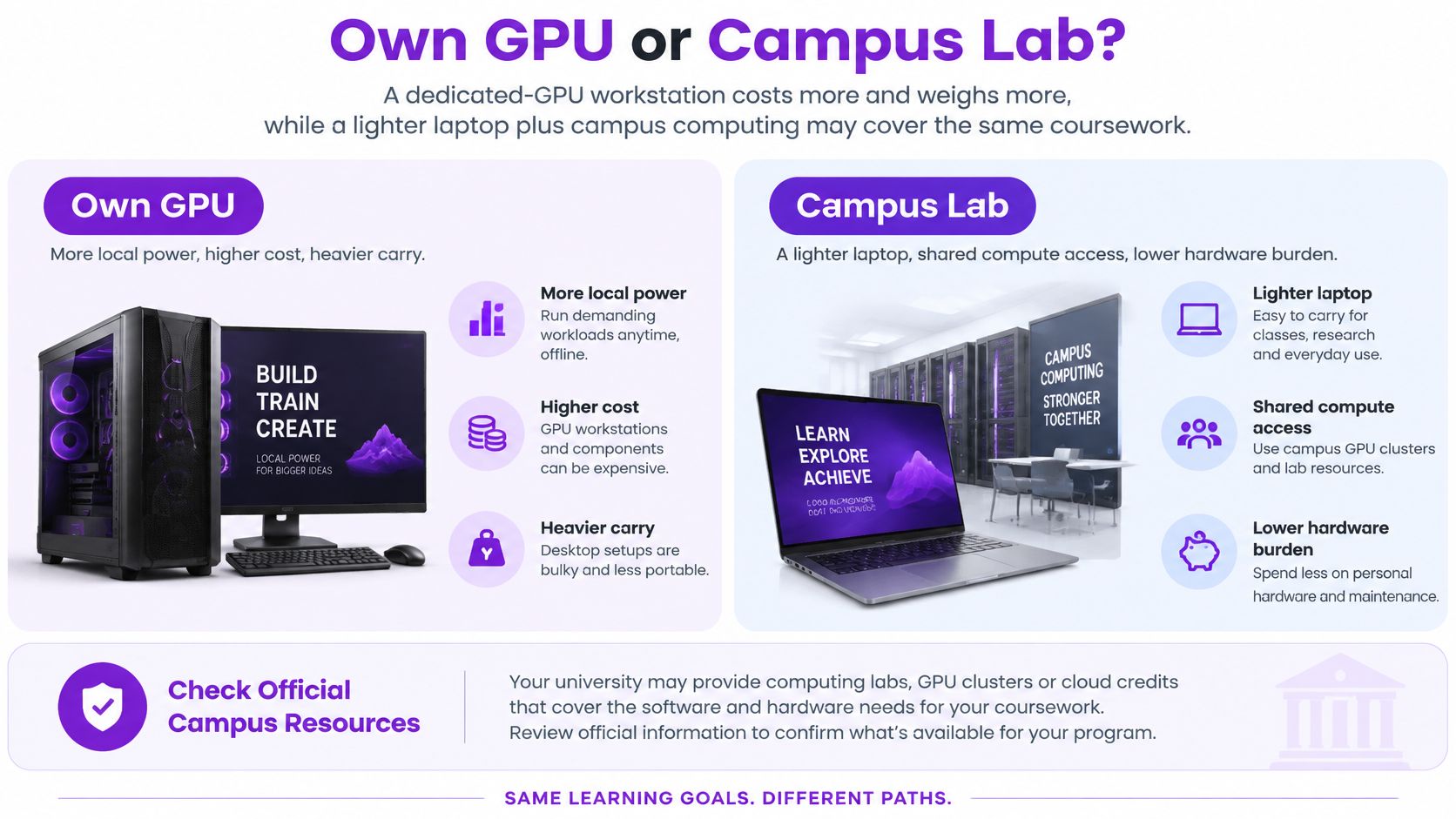
The spread across requirement pages is wide. The University of Denver accepts integrated graphics for its minimum and "better" tiers and reserves 4 GB of VRAM for its best tier. Drexel publishes a similar split, with a lower baseline for ordinary coursework and a higher recommendation for students switching among CAD, finite-element analysis, and other demanding applications on one machine. Louisiana Tech sits at the heavy end of the group, publishing a recommendation built for advanced modeling and simulation rather than an entry floor every student must meet. One institution can hold both answers at once: Denver's minimum tier and its best tier describe different laptops for different courses.
The University of North Carolina at Charlotte is stricter about the personal machine. It requires 64-bit Windows, an Intel Core i7 or AMD Ryzen equivalent, at least 16 GB, a 512 GB SSD, and a dedicated GPU with at least 2 GB of VRAM. It excludes Chromebooks, tablets, and mobile devices and specifies a 14-inch-or-larger display. The floor is set by the department, and it shifts the buy.
The decision rule
Frequency decides. If a course needs the GPU every week for four years, owning the hardware usually pays off in time saved and in never queueing for a lab seat. If heavy simulation is a few assignments per degree, lab machines, remote desktops, or cloud sessions cost less than carrying a workstation.
Price the two paths. The laptop path is purchase price plus four years of a heavier chassis. The lab path is access fees where they exist, remote-desktop latency on large models, and the risk of a queue near deadlines.
An aerospace student whose structures course runs analysis on a department cluster through a remote desktop keeps the personal machine light and spends on processor and memory instead. A student whose program grades GPU-heavy work done on a personal laptop has no lab to lean on and buys the hardware. The deciding variable is where the heaviest weekly workload runs, which is why two published specs pages can both be right.
Shortlist Models That Match Each Profile
Start from the profile row for the hardest course, then keep only configurations that meet every cell in that row. Check the official configuration, not the marketing name. "RTX" on a product title means nothing until the VRAM, the RAM, and the SSD size are on the spec sheet.
- Pick the profile. Choose programming and basic MATLAB, CAD and 3D modeling, simulation, or lightweight general use. A student with CAD in two courses and simulation in one shortlists from the simulation row, because the hardest course sets the floor.
- Filter to the row. Keep models with at least that RAM, storage, and GPU. Confirm memory and the SSD can be set at purchase if they are not already at the row's level.
- Check the platform. SolidWorks-type CAD stays on Windows x86-64. ARM laptops and Chromebooks drop out of that row even when the RAM number looks right.
- Compare three candidates. On each surviving model, note weight, battery behavior under the target app, and warranty length. Cite a price only from the seller's page or the manufacturer's listing, and write down the date it was checked.
The Dell XPS 13 sits at the thin end of this filter. It belongs in a programming or lightweight comparison only after the configured memory and storage are confirmed. It is the wrong shortlist for a CAD row that requires a dedicated GPU.
Three names per row are enough. A longer list usually means the filter was skipped.
Confirm Your Laptop Before You Buy
Buy the laptop that the department's software list, the platform rules, and the matching profile all approve. Don't buy the one with the louder brand or the higher benchmark.
FruitPunch scores products with a published weighting of 40% for quality, 25% for ease of use, and 35% for value. That split fits this purchase. A fast GPU that fails the software list is not quality, and a cheap thin laptop that can't be upgraded is weak value across four years.
- Confirm every required application and its operating system on the department page.
- Match the profile row for the hardest course: 16 GB for programming, 32 GB for CAD, 32 to 64 GB for simulation.
- Choose 512 GB as the storage minimum and 1 TB when four years of projects, datasets, and virtual machines have to fit.
- For CAD, look for a dedicated RTX 4050 or higher, or an equivalent GPU with at least 4 GB of VRAM.
- Confirm that RAM and storage are replaceable, or buy the higher configuration up front.
- Check warranty length, accidental-damage cover, and whether a shop can repair the machine.
- Test battery life under the actual workload, not the light-use figure on the box.
Seller prices change, so check the price on the day of purchase and keep the listing date with the quote. The right laptop is the one that runs the hardest course without a workaround.
FruitPunch publishes scored comparisons and sourced guides that start from the software a buyer has to run, including laptops for engineering coursework. Its rankings weigh quality, ease of use, and value so a shortlist is more than a brand chart. Visit FruitPunch to compare configurations against the profile that matches the hardest course.
Spotted an error in this guide? Email editorial@fruitpunch.ai