Guide · General
Best Voice to Text App in 2026: 10 Tools Compared
By the FruitPunch research deskUpdated November 22, 202612 min read
In short
Compare the best voice to text app options by platform, features, free plans and price, and find the right match for dictation, meetings or media editing.
The best voice-to-text app depends on the job. Dictation tools put words into the app you are already using. Recording tools turn meetings and interviews into searchable transcripts. Editing tools let you revise media through its transcript. Each solves a different problem, so choose by workflow rather than looking for one overall winner.
The technology has changed sharply. Microsoft reported that its conversational speech recognition system reached a 5.1% word error rate on industry-standard tests in August 2017, compared with roughly 80% for its first speech recognition system in 1993. The 2017 result was slightly better than the 5.9% average credited to professional human transcribers, according to Microsoft's account of that progress.
This guide compares ten apps by platform, features, free options and price, and points out where each falls short. Published accuracy results depend heavily on the audio, the accent and the vocabulary, so this guide doesn't rank the apps on accuracy. Test each one on your own recordings, names and jargon before you commit. Prices can change, so confirm them on the seller's page before buying.
Table of Contents
- 1. Wispr Flow
- 2. Superwhisper
- 3. Otter.ai
- 4. Google Docs Voice Typing
- 5. Dragon Anywhere
- 6. Apple Dictation
- 7. Microsoft Word Dictate
- 8. Notta
- 9. Descript
- 10. Rev
- How the ten voice to text apps differ by platform and free option
- Match the Tool to Your Workflow
1. Wispr Flow
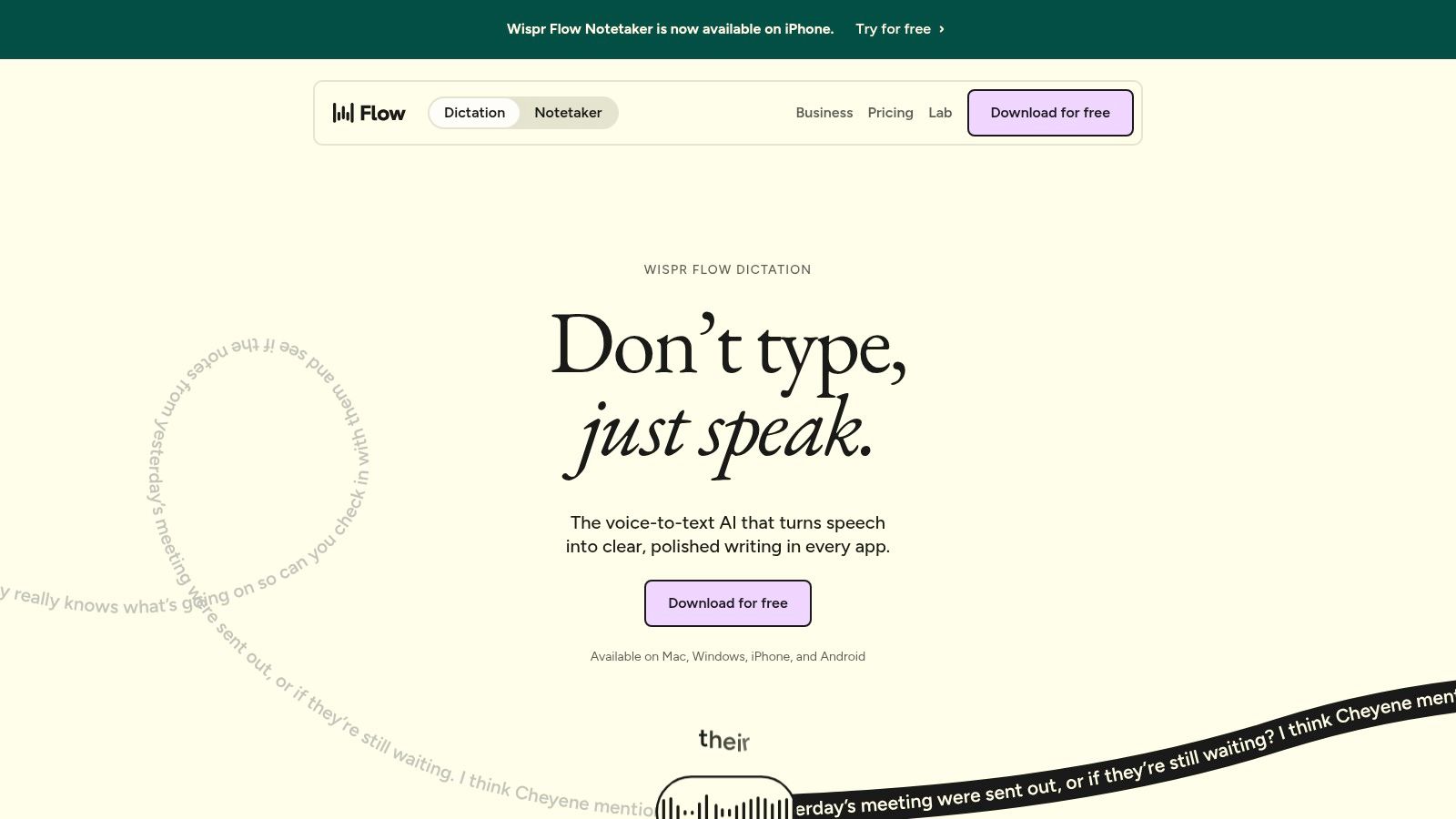
Wispr Flow solves the typing problem rather than the recording problem. Put the cursor in an email, a chat thread, a document or a notes app, hold the shortcut, speak, and the text lands where you were already working. No separate recorder, no copy and paste.
It runs on Mac, Windows, iOS and Android, which matters if your day moves between a desk and a phone. It supports more than 100 languages, a personal dictionary for names and jargon, reusable snippets, and an optional notetaker for meetings and voice memos. The notetaker is the weaker half of the product, and it's more limited by platform than the dictation is.
What the free plan actually gives you
VerdictPal's breakdown of Wispr Flow's plans lists a free tier capped at 2,000 words per week on desktop and 1,000 words per week on mobile. Pro costs $15 per user per month billed monthly, or $12 per user per month billed annually, and provides unlimited dictation. Enterprise plans add SSO/SAML, HIPAA support, SOC 2 Type II and ISO 27001.
Two thousand words a week sounds generous until you dictate a first draft of anything. The mobile cap is half the desktop one, so heavy phone use hits the ceiling first.
- Best at: dictating into apps that have no dictation of their own, from a CRM to a ticketing system.
- Watch for: the weekly word cap and the separate, lower mobile allowance.
- Skip it if: what you need is an archive of meeting transcripts.
Full platform details sit on Wispr Flow's site.
2. Superwhisper
Superwhisper is for people who want the speech model running on their own machine. Downloadable models let it transcribe on the device, and offline use follows from that: no connection, no audio leaving the laptop. It types at the cursor across apps on macOS, Windows and iOS, transcribes audio files, and offers custom modes for different kinds of work. It also works with screen readers, which most dictation tools don't bother with.
Setup is the price of that control. Picking a model, deciding which modes need which one, and tuning shortcuts takes an afternoon that a built-in tool never asks for. Advanced features sit behind Pro, and availability varies by platform, so check the platform you use before paying.
Privacy is a trade, not a label. Offline keeps audio on your machine. Cloud processing can still be defensible when the audio is deleted on the way out.
That trade is measurable in behavior. A 2026 survey of 507 people covering 89,791 dictations across 428 apps found users who could choose their processing method split roughly 43% fully on-device and 57% zero-retention cloud. Neither group is being careless.
One license covers the supported devices, which softens the cost if you work across a laptop and a phone. Current platforms and plans are listed on Superwhisper's site.
3. Otter.ai
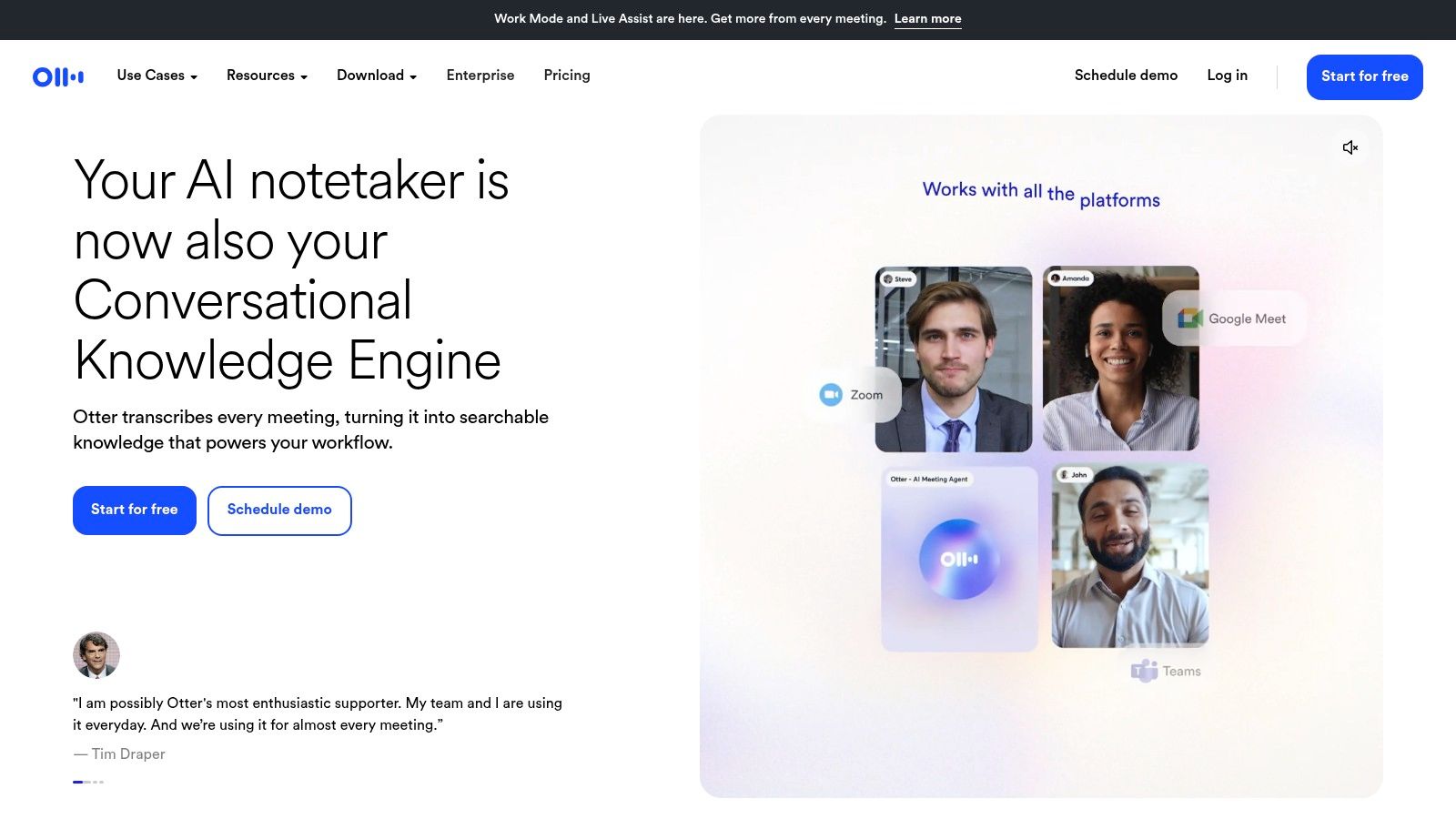
Otter records the conversation and hands you the text afterwards. It identifies speakers, transcribes live, joins Zoom, Microsoft Teams and Google Meet calls, and turns transcripts into summaries and action items you can search later. For meetings and interviews that's the whole job. For dictating a paragraph into a form field, it isn't.
Plans are built around minutes, not words. Otter's own plan summary puts Basic at 300 transcription minutes a month at no cost. Pro costs $8.33 per user per month billed annually for 1,200 minutes a month, with each conversation capped at 90 minutes. Business costs $20 per user per month billed annually for 6,000 minutes, allows conversations up to four hours, and supports unlimited file imports.
Where the minute caps bite
A 90-minute conversation limit is fine for a weekly team call and useless for a full-day workshop or a long deposition. The minute allowance, not the feature list, decides whether a plan survives contact with your calendar.
- Good fit: recurring meetings you need to search or summarize.
- Poor fit: continuous dictation into other software.
- Check before upgrading: average meeting length, not number of meetings.
Editors and export formats are covered in more depth in a full Otter.ai review. The product itself is at Otter.ai.
4. Google Docs Voice Typing
Google Docs Voice Typing is a free option for drafting directly in Docs. Open a document in Chrome on a desktop computer, select Voice typing from the Tools menu, and speak. Voice commands can also handle edits and formatting, such as selecting a paragraph or adding a bullet.
A study comparing Google Voice Typing with Windows Speech Recognition reported accuracy of 88.61% to 93.47% for non-native speakers using Google, compared with 53.50% to 74.44% using Windows, depending on whether participants read prepared sentences or spoke freely. The results make free dictation worth trying, though accuracy on your own audio may differ. Test it with a passage you know well, then check missed words, punctuation, and names.
Google Docs Voice Typing works inside Docs, not across your computer. It cannot type into an email client, CRM, or code editor, and it does not keep a recording archive after the session ends.
Say punctuation aloud only where it matters, then edit the rest. Calling out every comma can slow down dictation.
If you already draft in Google Docs, there is no separate installation or subscription to manage. The trade-off is that dictation stays inside one editor.
5. Dragon Anywhere
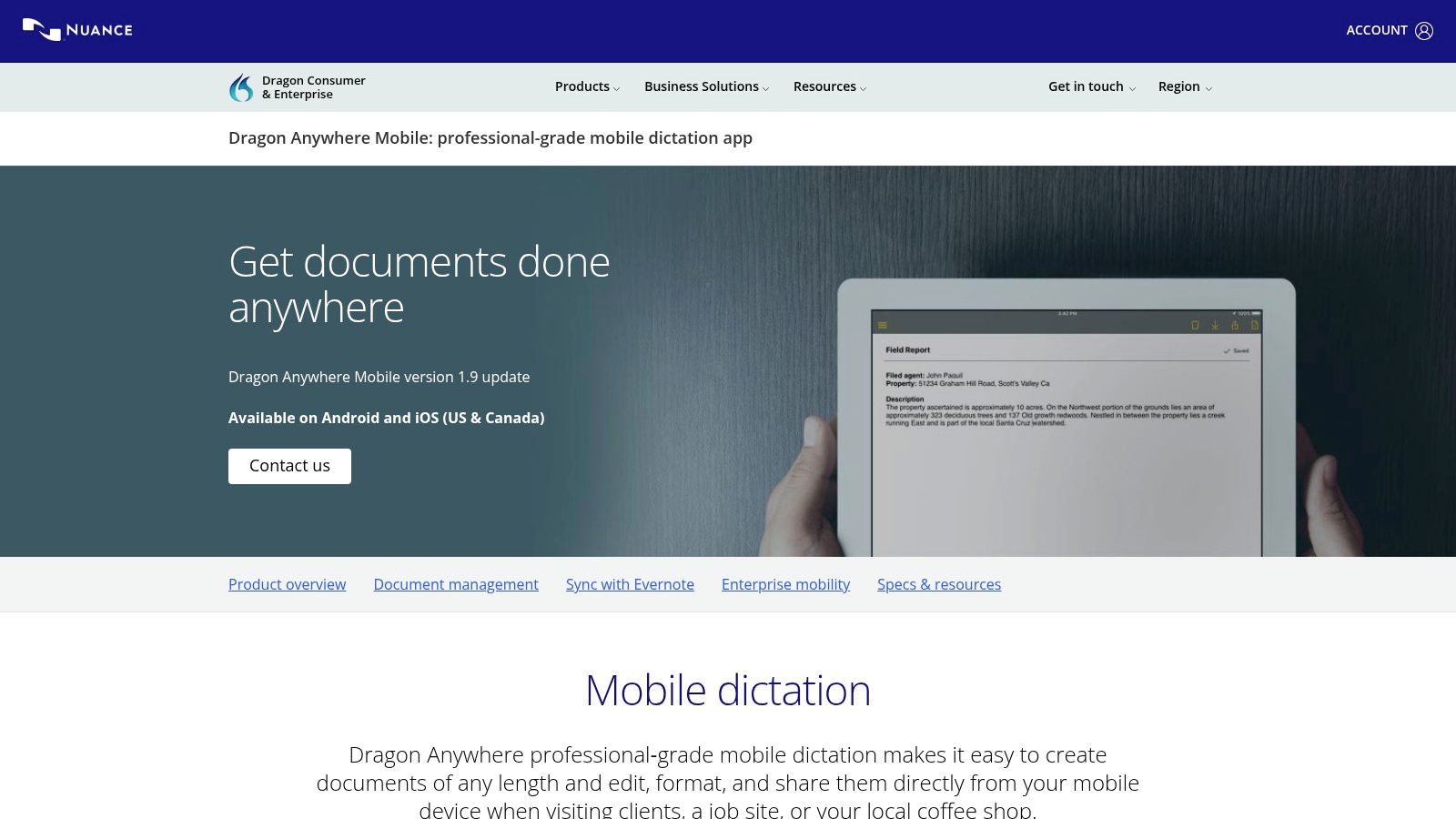
Dragon Anywhere is the mobile app for people who dictate documents rather than messages. Continuous speech recognition, editing and formatting commands, custom words, and Auto-text shortcuts for phrases you repeat. It syncs with supported Dragon desktop editions, so a report started on a laptop can be finished on a phone.
The case for it is length. Short dictation is a solved problem on every handset. A long report spoken into a phone is not. Custom vocabulary is the other reason people pay: client names, drug names, case citations, part numbers. Feed those in once and the correction rate falls.
The case against it is commitment. It requires a subscription, and it's the wrong purchase if what you want is an automatic meeting summary rather than words you type with your voice.
What to check before subscribing
- Language support: confirm your language and regional variant are listed, not just the app's headline count.
- Device pairing: check that the desktop edition you own syncs with the mobile app before you rely on it.
- Platform gaps: verify iOS or Android support for your specific device generation.
- Plan terms: read the cancellation terms on the seller's page, since annual billing commits you upfront.
Product details are on the Dragon Anywhere page.
6. Apple Dictation
Every iPhone, iPad and Mac ships with dictation built in, reachable from the keyboard in any text field. For messages, notes and short replies it's the shortest path from speech to text: no install, no account, no subscription. Mac settings also include options related to on-device processing.
Language coverage is where the built-in route needs a closer look. Apple's list varies by device, region and OS version, which is easy to miss until the language you need isn't offered. Independent apps publish their coverage explicitly. The App Store listing for Speech to Text: Voice to Text App, for example, names Arabic, Cantonese, Catalan, Chinese, Dutch, English, French, German, Hindi, Italian, Japanese, Korean, Portuguese, Russian, Spanish, Swedish, Thai, Turkish, Ukrainian and Vietnamese, plus options such as Shanghainese, Norwegian Bokmål and Malay.
That granularity is the point. A "multilingual" badge tells you nothing about whether your language, or your dialect of it, is supported.
- Good for: quick replies, short notes, search queries, hands-free messaging.
- Poor for: long documents, meeting archives, anything you'll want to search later.
- Check first: the language list for your region and device.
Apple's device documentation lives at Apple.
7. Microsoft Word Dictate
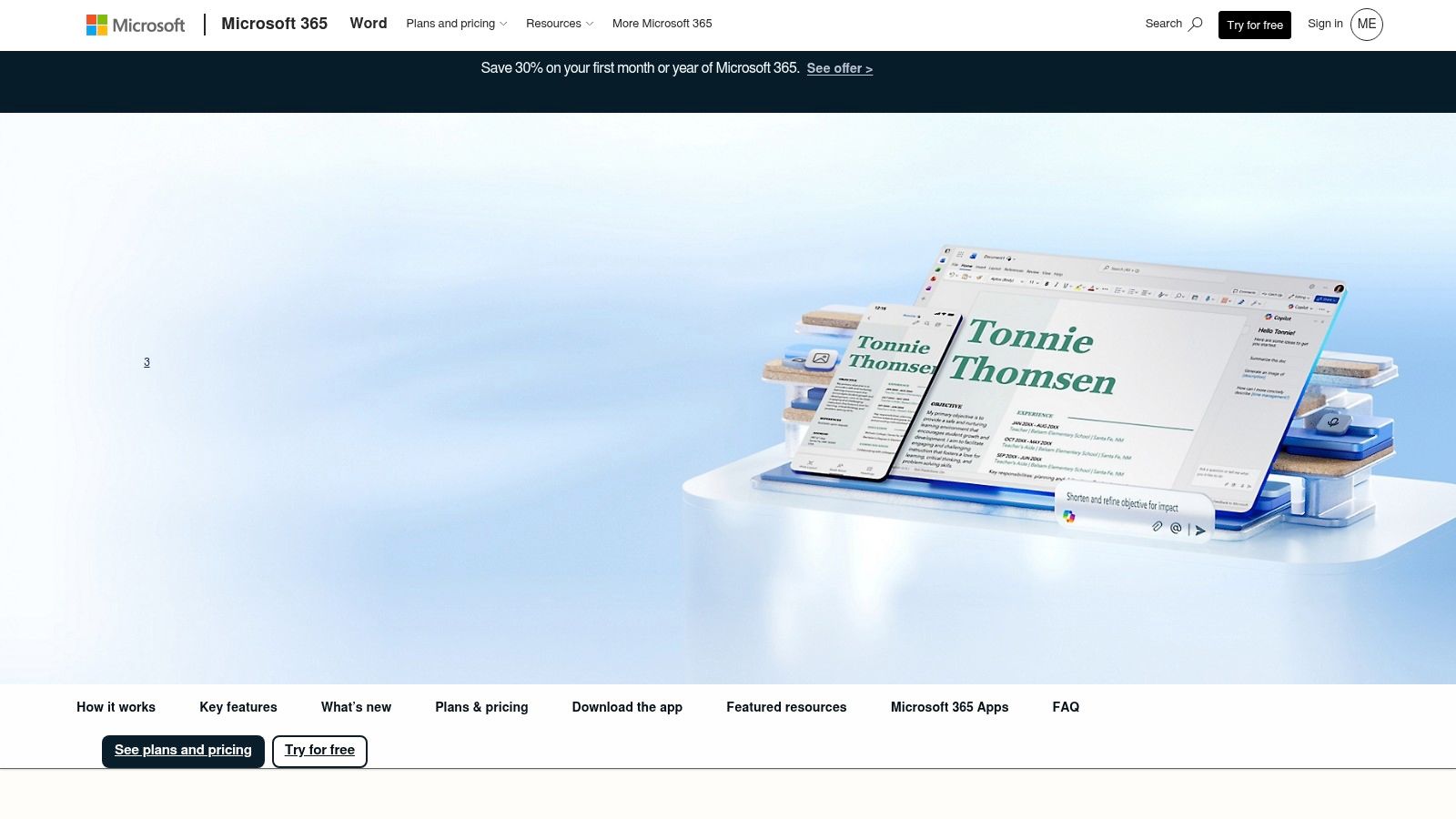
If the document lives in Word, the dictation is already there. Dictate works in Word on supported desktop, Mac and web versions, converting speech to text while you compose, inside the same editing, commenting and formatting workflow as typed text. For outlines and first drafts it's the least disruptive option for anyone already paying for Microsoft 365.
Two conditions matter. It requires a Microsoft 365 subscription, and it needs an internet connection, so it's a poor choice on a flight or a site visit with no signal. It's also a Word feature rather than a system-wide tool: it won't type into chat apps, invoicing software or a browser form.
Dictate a section, then read it back aloud. Misrecognized words survive silent proofreading far more often than they survive hearing the sentence in your own voice.
Where it fits and where it doesn't
- Best for: drafting reports, proposals and long emails inside Word.
- Bad for: anyone who writes in Notion, WordPress, Scrivener or a browser-based editor.
- Hidden cost: the subscription covers the whole suite, so it only makes sense if you'd pay for Microsoft 365 anyway.
The feature set sits alongside Word's other tools on Microsoft Word's page.
8. Notta
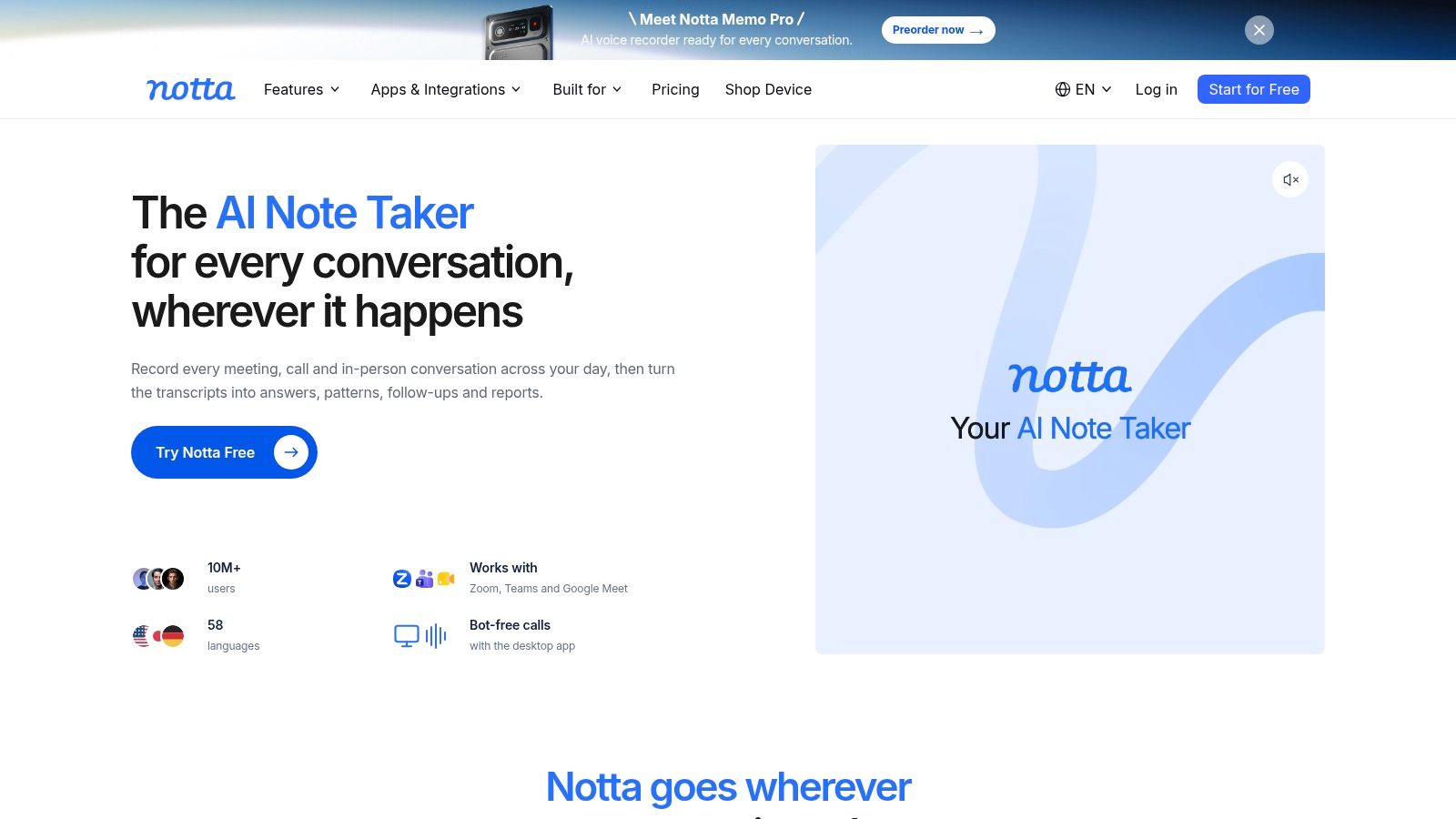
Notta is a transcription service reached through web and mobile apps. Record in the app or upload an existing file, then edit, share, translate or download the transcript. Paid plans add AI summaries and team features, which is the shape most services in this category take.
Two details matter more than the feature list. The free tier limits how long a single recording can run, so a long interview can hit the ceiling before you've decided whether the service suits you at all. And annual prices are billed upfront, turning a small monthly figure into one larger charge on day one. App-store pricing can differ from website pricing, so compare both before buying.
How to trial it properly
Upload something representative rather than something flattering. Thirty minutes of real audio is the test: two speakers, a few names, some background noise, and the vocabulary your work uses.
Then count the corrections. A transcript that needs a heavy edit on every page is more expensive than a plan with a higher sticker price.
Readers weighing it against other meeting recorders can read a Fireflies.ai review as a second comparison point. Notta's plans are listed on Notta's site.
9. Descript
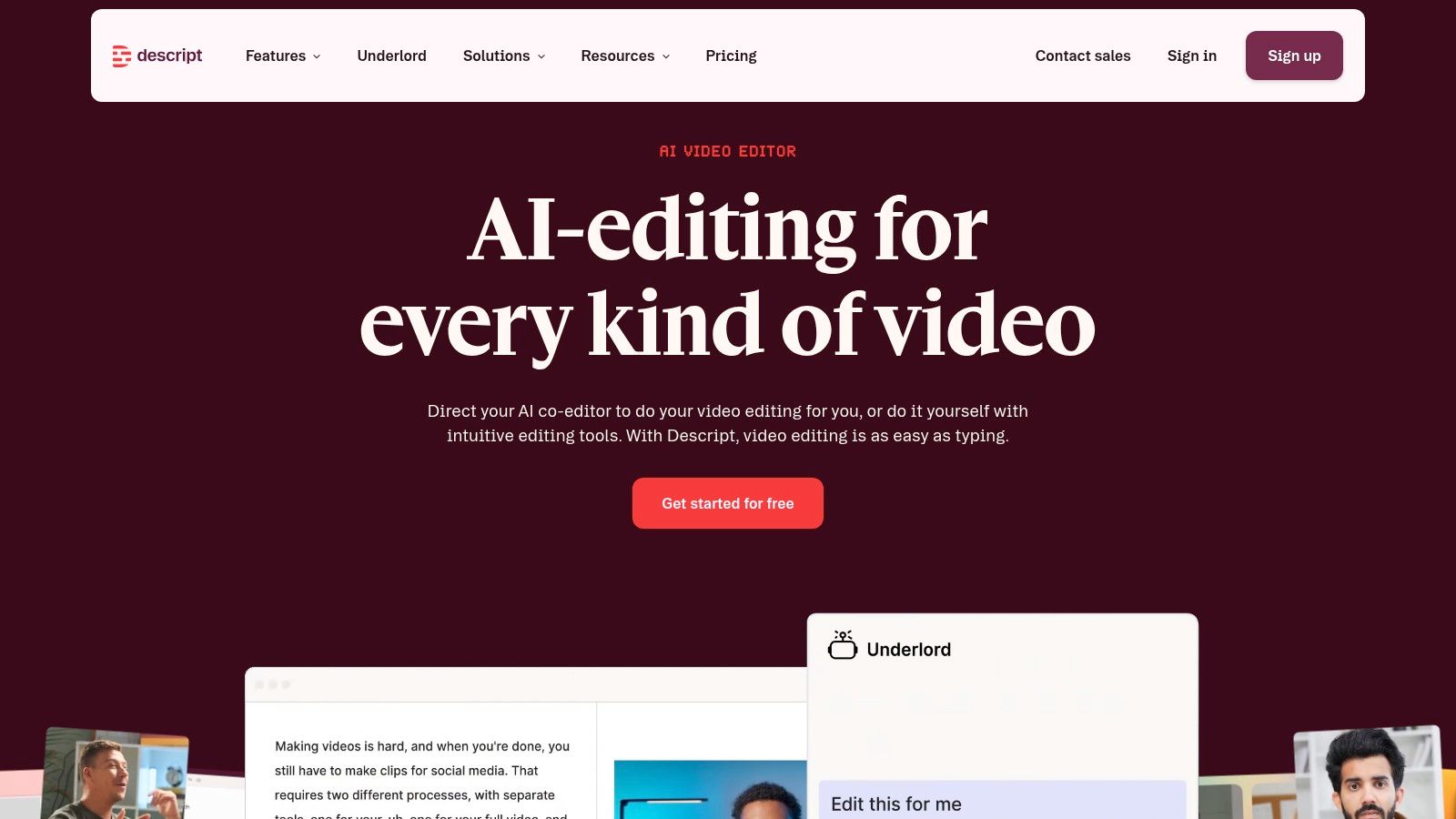
Descript treats the transcript as the editing surface. Transcribe a recording, delete a sentence in the text, and the matching audio disappears from the timeline. Speaker detection, captioning and filler-word removal sit on top, which makes it the right tool for podcasts, course videos, interviews and anything that gets published.
That's a different job from dictation, and it's worth being honest about which one you have. Nobody needs Descript to answer an email. Somebody cutting a 40-minute interview into a 12-minute video needs it badly.
Budget the hours, not the seats
Monthly transcription hours are limited by plan, and the advanced cleanup tools sit on paid tiers. The free plan exists to test basic transcription and editing, not to run a weekly show.
- Choose it when: the transcript is a means to edit media, not the final product.
- Avoid it when: you want a lightweight voice keyboard.
- Plan for: hours of source audio per month, not minutes.
The editing workflow is examined in the Descript review. Pricing and plans are on Descript's site.
10. Rev
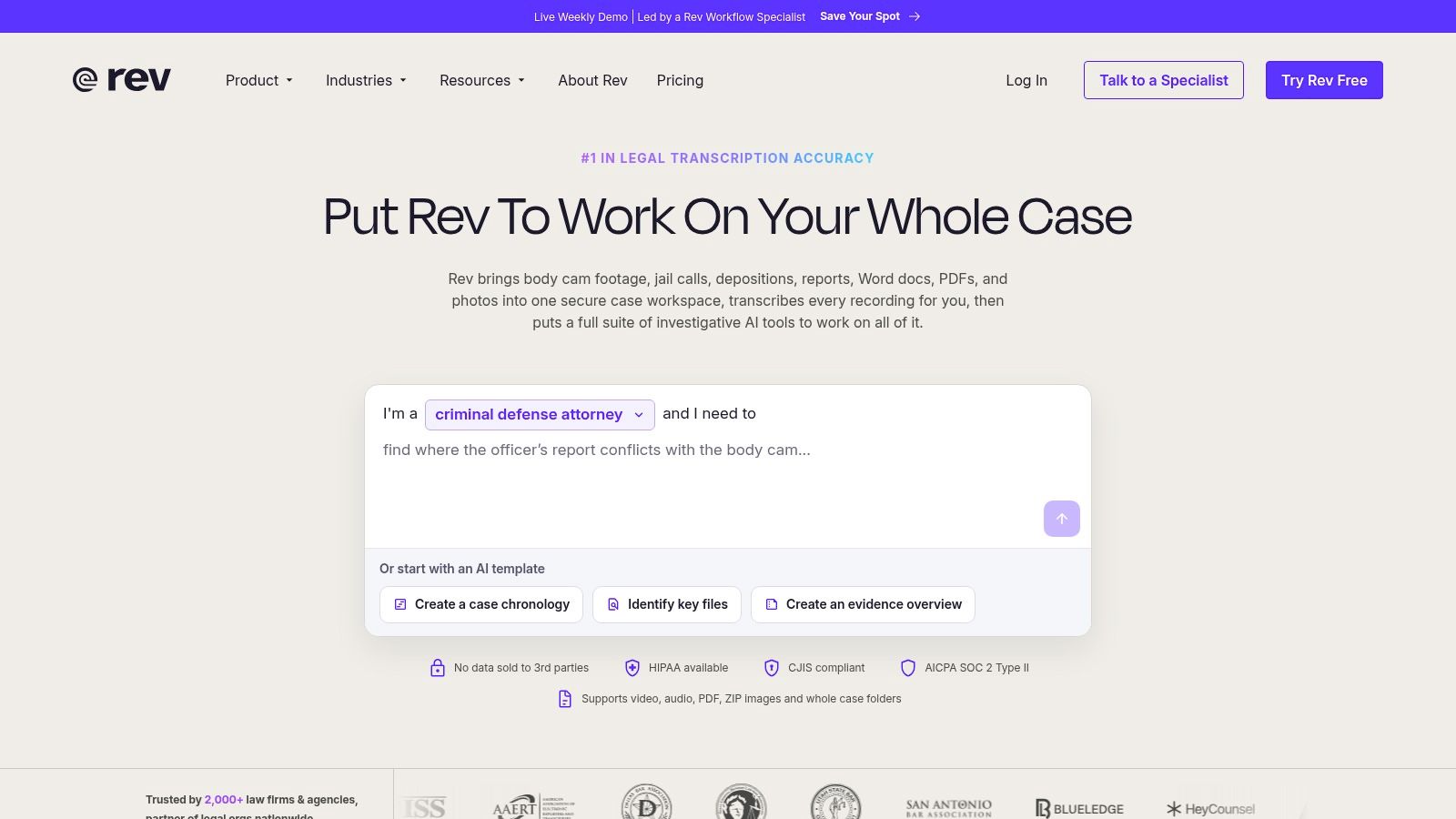
Rev sells transcripts rather than dictation. Record on the iPhone or Android app, or upload audio and video, order an AI transcript, and optionally send the same file to a human transcriptionist. Edited and downloadable formats come with it. The human option exists for one reason: automated text sometimes needs checking.
The gap between clean audio and real audio is where that matters. An AssemblyAI benchmark summary reports that modern systems commonly exceed 95% accuracy on clean, read English speech but run 5 to 10 percentage points lower on more diverse speech, and that a 2025 test on 40 call-center recordings saw a leading system reach 87.67% accuracy. Narrow-bandwidth phone audio with crosstalk is exactly where a human pass earns its price.
- Choose AI: clean audio, one speaker, quiet room, text nobody will quote.
- Choose human: the transcript feeds a published article, a legal file or a hiring decision.
- Skip Rev: if you want words typed into other apps as you speak.
Recording and ordering details are on Rev's site.
How the ten voice to text apps differ by platform and free option
The right app depends on where the words need to go. This table compares platform access, free options and each tool's main use.
| Item | Platforms | Free option | Best for |
|---|---|---|---|
| Wispr Flow | Mac, Windows, iOS, Android | Free tier with weekly word limits | Dictating across apps |
| Superwhisper | macOS, Windows, iOS | Free tier; advanced features require Pro | Local and offline dictation |
| Otter.ai | Web, mobile | Free plan with usage limits | Meeting and conversation transcription |
| Google Docs Voice Typing | Supported desktop browsers | Included with Google Docs | Dictating and editing in Google Docs |
| Dragon Anywhere | iOS, Android | No; subscription required | Longer-form mobile dictation |
| Apple Dictation | iPhone, iPad, Mac | Built in; no separate subscription | Basic dictation on Apple devices |
| Microsoft Word Dictate | Word for web, desktop, Mac | Requires Microsoft 365 | Dictating documents in Word |
| Notta | Web, mobile | Free plan with recording limits | Transcription and meeting notes |
| Descript | Desktop, web | Free plan for basic transcription and editing | Editing audio and video using transcripts |
| Rev | Web, iPhone, Android | Paid transcription orders; check Rev's site for current plans | AI or human transcription of recordings |
Match the Tool to Your Workflow
Three jobs, and each needs a different kind of tool. Dictation apps such as Wispr Flow, Superwhisper, and Dragon Anywhere put speech into the software you already use. Recording services such as Otter, Notta, and Rev focus on conversations and recordings. Built-in options from Google and Apple win on cost, while Microsoft Word Dictate requires a Microsoft 365 subscription. Descript is a separate editing category: it suits people who edit audio or video through a transcript.
Benchmarks offer a useful comparison, but they cannot predict how an app handles your voice. The Open ASR Leaderboard scores more than 60 open-source and proprietary systems across 11 datasets using word error rate and inverse real-time factor. Lower word error rate means fewer transcription mistakes. A higher inverse real-time factor means faster processing. The results show a trade-off: Conformer encoders paired with large-language-model decoders produce the strongest average English word error rates, while CTC and TDT decoder architectures process long recordings or offline work faster.
Speaker and recording conditions matter, too. A review of speech recognition accessibility research reports lower caption accuracy for accented speech than for a standard U.S. broadcast accent, with statistically significant differences. It also describes non-uniform error disparities across French and Spanish dialects and a substantial gap between conversational and read speech. An app's average score may not reflect its accuracy for a particular speaker.
The most useful benchmark is repair time: if fixing the transcript takes longer than typing it would, the app is a poor fit for that task.
A practical test takes about ten minutes. Use three minutes of your own speech, including your accent, two client names, a piece of jargon, and the background noise in your usual setting. Transcribe the same audio with two apps. Count the errors, then time how long it takes to correct them.
Check plan limits as carefully as accuracy. Weekly word caps, monthly minute allowances, and per-recording limits affect whether a free option suits regular use. Those limits vary by product, so compare each plan with the amount and length of audio you expect to process.
Check the seller's page for the current price. Readers can send corrections or reports of a new price to editorial@fruitpunch.ai.
Spotted an error in this guide? Email editorial@fruitpunch.ai